
This process encompasses how to view and approve Budget Items that are currently inactive.
By default, newly-created Budget Items are saved as drafts. Budget Items will only become active after being approved.
Viewing Budget Items Waiting For Approval
There are two ways to view Budget Items waiting for approval:
Via Email
1. Two times a week, users with FMB Reviewer Access or CPIC Admin Access will be emailed a link to draft Budget Items waiting their review. Click on the link to be redirected to a filtered list of Budget Items on FEDPASS.

Manually
1. Navigate to the Budget Items page in the Portfolio tab.

2. Select "Draft" from the Display dropdown menu near the top of the page.

Draft Budget Items have badges to display whether FMB review, CPIC review, or both is needed.
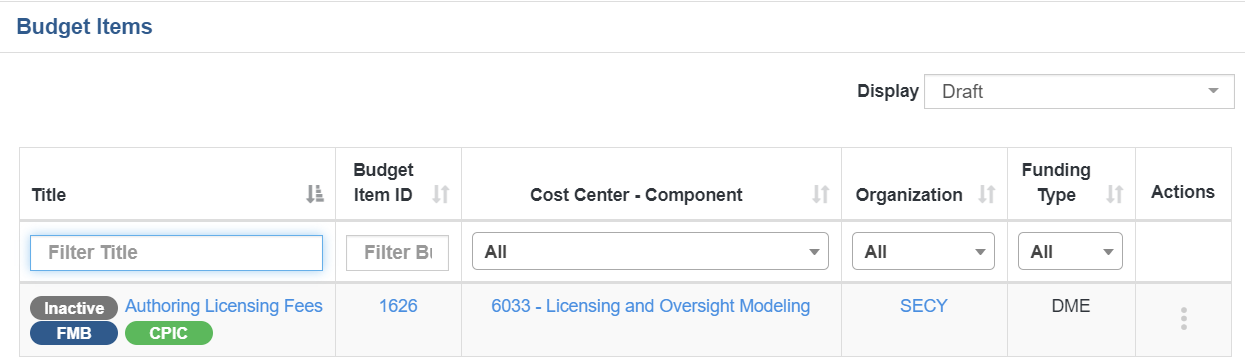
A Budget Item awaiting both CPIC review and FMB review before becoming active.
How To Approve an Inactive Budget Item
1. Navigate to an inactive Budget Item using one of the above processes.
2. Go to the Budget Item details page by clicking on the Budget Item title.
- Note: Approval Actions are also available via the drop-down in the Actions column on the Budget Item list page.

3. Click on the "Actions" dropdown menu near the top of the page.

4. Select either FMB Approval or CPIC Approval from the dropdown menu.
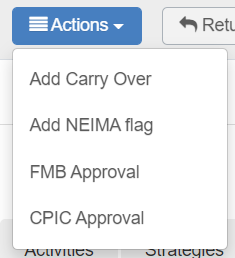
NOTE: Users without the proper permissions will be unable to click on FMB Approval or CPIC Approval.
5. In the CPIC Approval or FMB Approval pop-up menu, select the appropriate user from the dropdown menu, add a comment and click "Approve."

Once approved by both the FMB and CPIC teams, the Budget Item will move into 'Active' status.

An active Budget Item without any badges indicating it needs CPIC or FMB approval.
Comments
0 comments
Please sign in to leave a comment.