
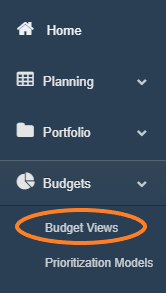
1. Access the Budget Views screen by selecting the 'Budget Views' option from the Budgets menu drop-down.
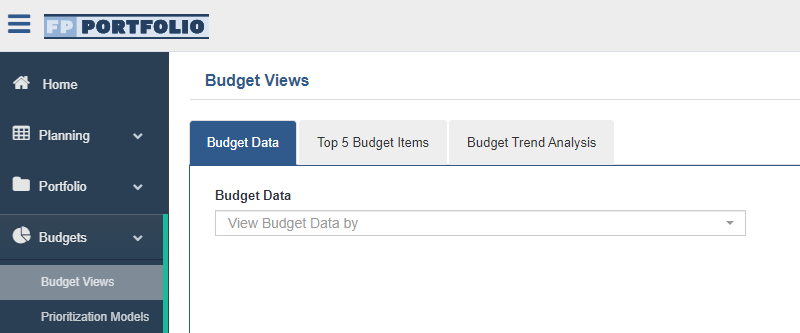
- This option will navigate User to a screen with three tabs, with the 'Budget Data' tab selected by default.
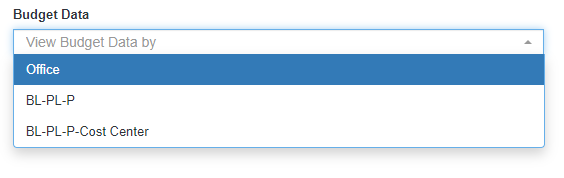
2. To view the Budget breakdown by Office, Funding Line, or Funding Line-Cost Center, select the desired data set by which to filter from the 'Budget Data' drop-down provided.
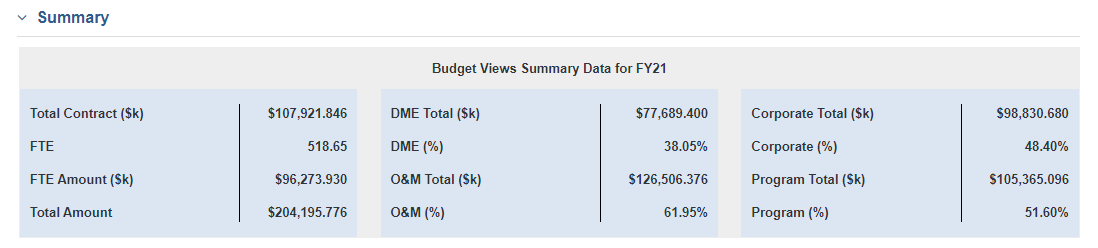
- The Summary table displays a breakdown of the whole Portfolio for the selected FY.
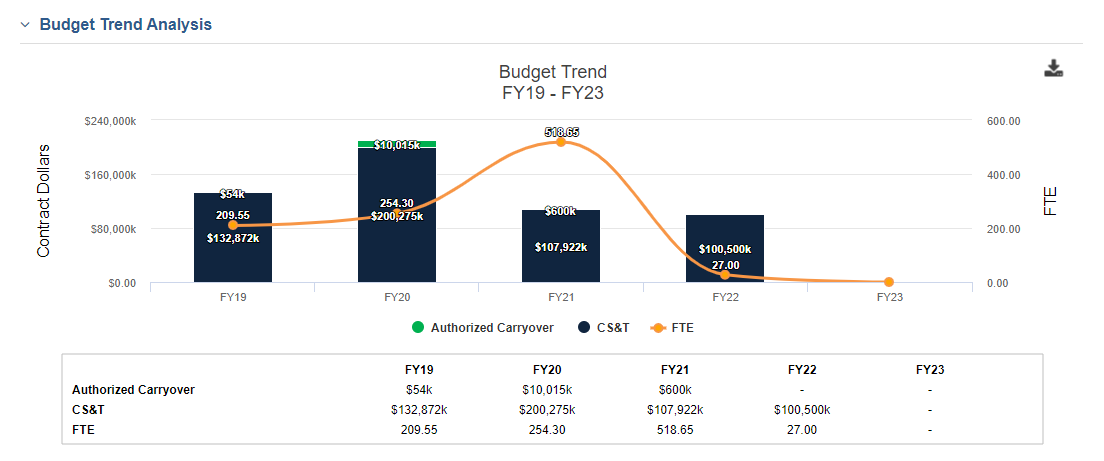
- The Budget Trend Analysis table can be expanded to display the Contract Dollars and FTE Amounts for the Agency Portfolio over the span of five Fiscal Years.
3. To drill down on data, select the desired option from the first column in the returned grid.
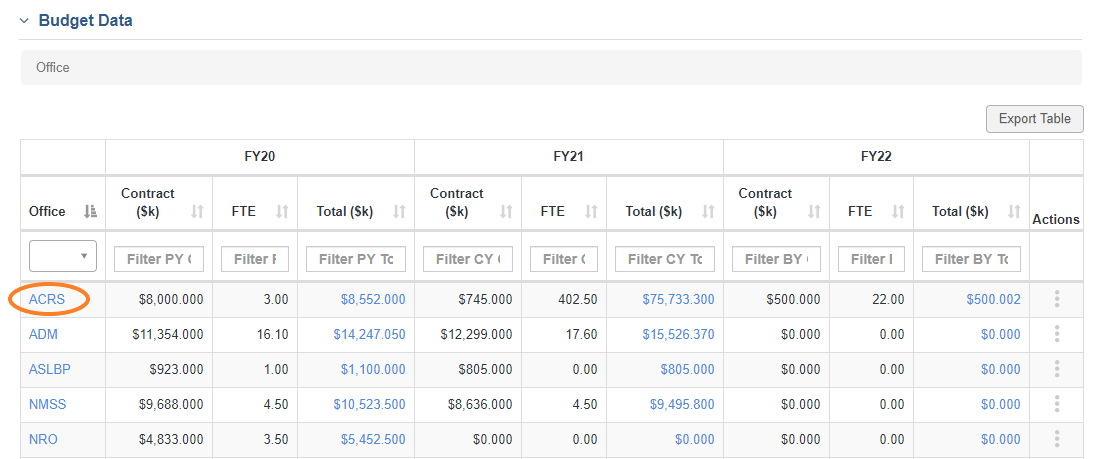
*Summary Table and Budget Trend Analysis graph will automatically update to reflect updated data sets/drill down level.
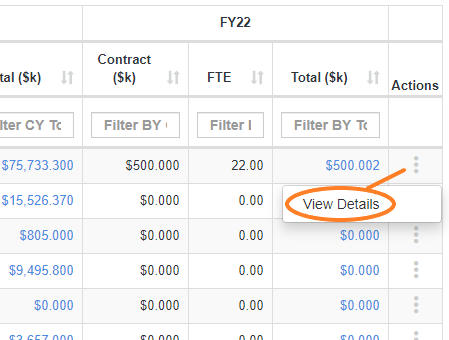
4. To drill down directly to the Budget Item level for any row of data, select the 'View Details' option from the 3-vert drop-down.
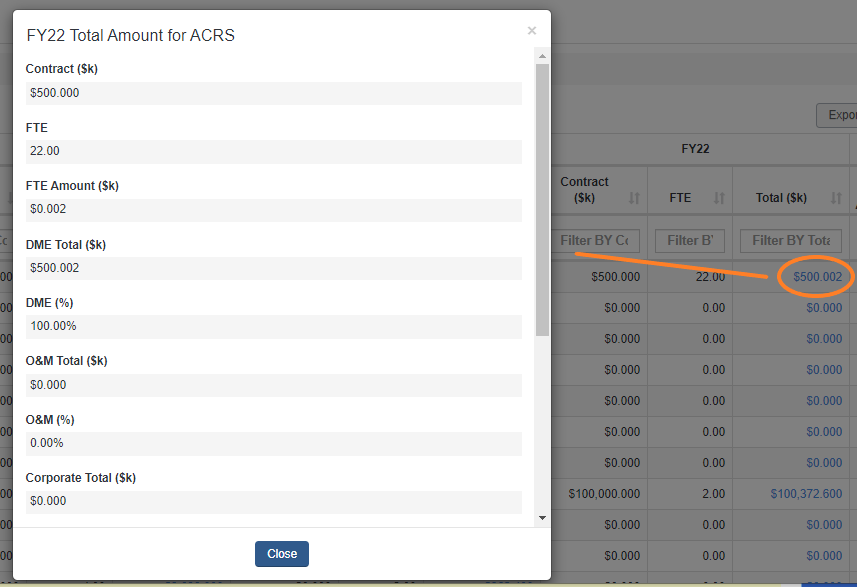
5. To view 'Total Amount' breakdown, select any Amount value from any of the returned grids.
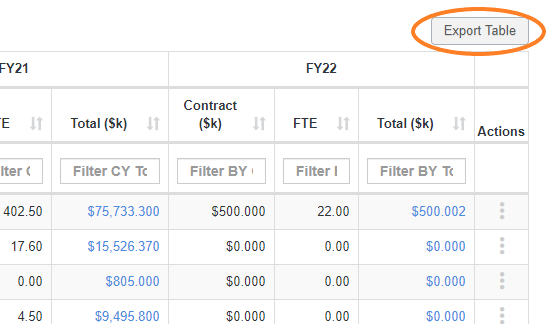
6. Export any table by selecting the 'Export Table' button option on the top right of the list grid.
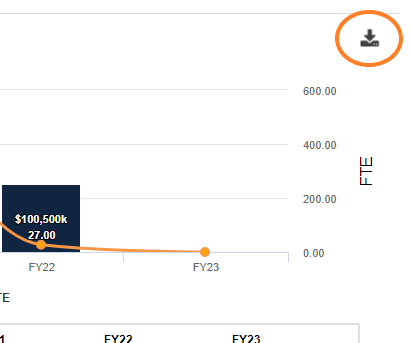
7. Download the Budget Trend Analysis at any level by selecting the 'Download Image' icon at the top right of the graph.
Comments
0 comments
Please sign in to leave a comment.