
1. To access the CIO Evaluation screen, select ‘CIO Evaluation’ menu option from the CPIC menu on the left.
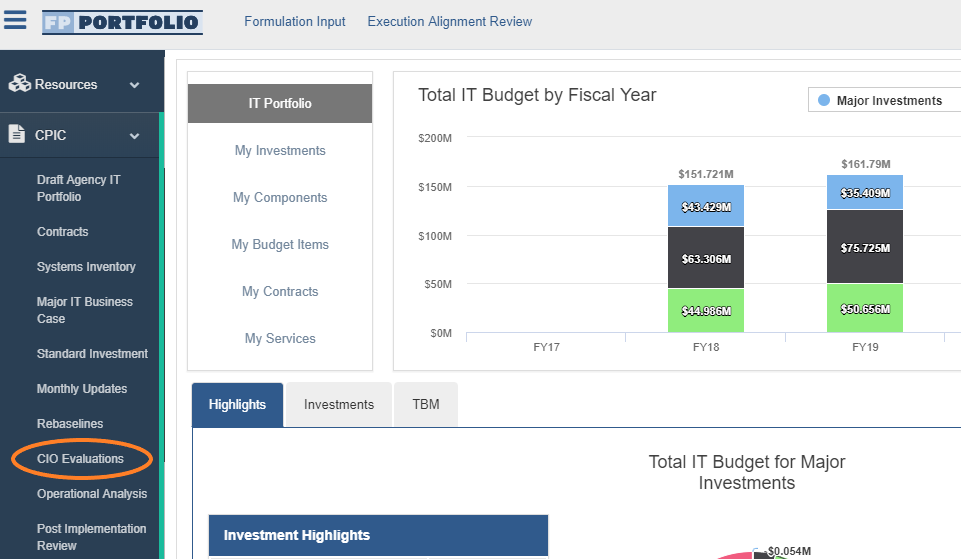
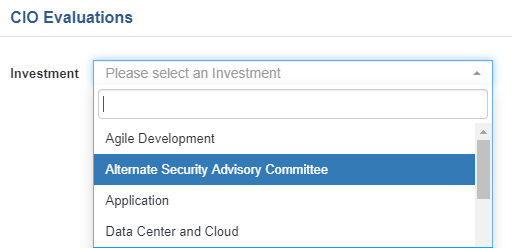
2. When the CIO Evaluation screen opens, select the desired investment from the drop-down provided.
3. When the screen loads, select the ‘Edit’ button from the 'Actions' dropdown button on the right side of the screen.
- The 'Edit' button has to be selected for each section of the CIO Evaluation
- Note that unless user is a designated SME, SME questions will remain closed for Edits.

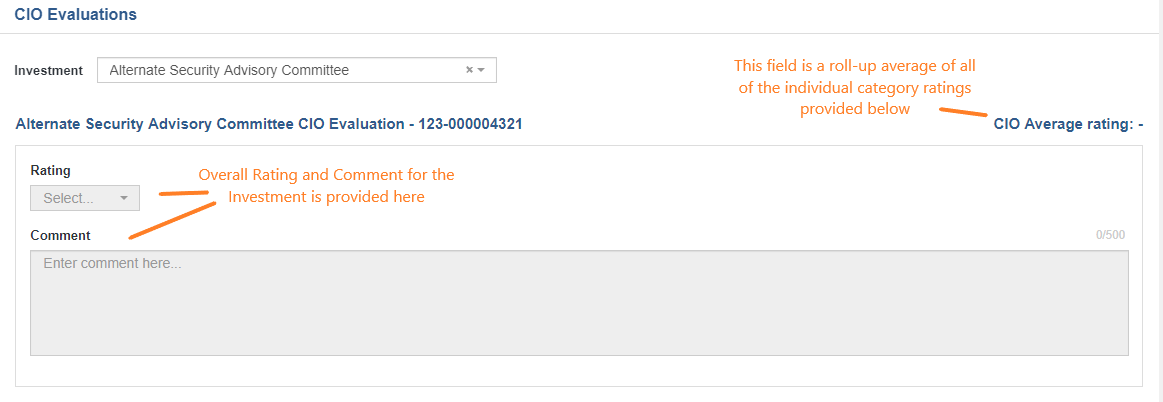
4. To provide an overall CIO Rating and Comment for the Investment, select desired Rating and add Comment to the fields at the top of the screen, below investment title.
- Note that the ‘CIO Average Rating’ field is not editable and serves as a roll-up average of each Category’s Average Rating listed below.
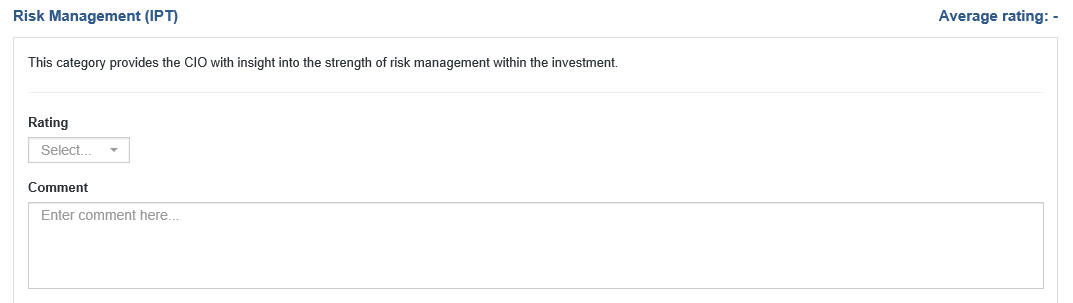
5. Provide an overall Rating and Comment for each Category.
- Note that the ‘Average Rating’ field is a roll-up value from the individual question ratings below.
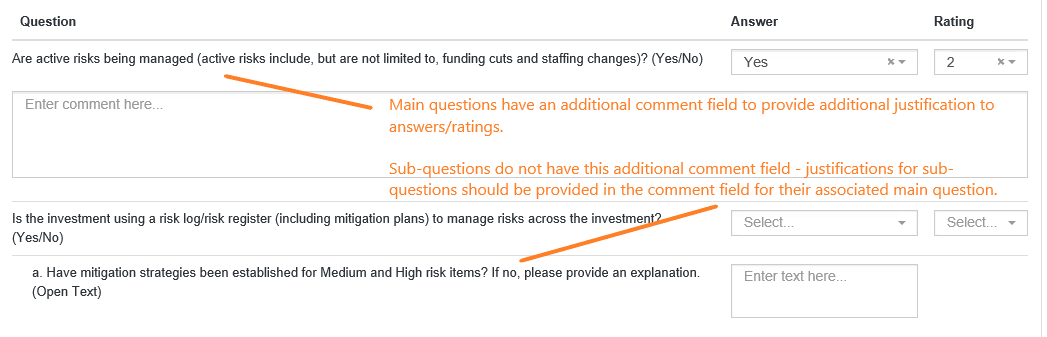
6. Provide answers to individual questions.
- Note that Main questions have an additional comment field to provide additional justification to answers/ratings. Sub-questions do not have this additional comment field - justifications for sub-questions should be provided in the comment field for their associated main question.
7. After answering questions, select ‘Save’ button from the 'Actions' dropdown.
- Note: 'Save' must be selected for each section of the CIO Evaluation edited.

Submitting CIO Evaluations
1. To submit the CIO Evaluation for a given investment, select the 'Submission History' option at the top of the screen.
2. Then select the 'Submit to ITDB' option at the top of the Submission History screen.
Comments
0 comments
Please sign in to leave a comment.